Obtenga su primera página para China activa en aproximadamente 15 minutos. No necesita imágenes ni un perfil completo para comenzar.
Paso 1 — Registrarse
Vaya a app.vjqj.com y haga clic en "Registrarse".
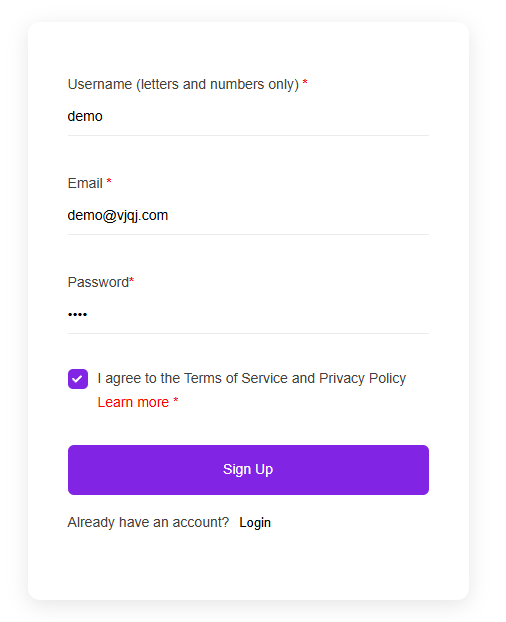
Complete tres datos: un nombre de usuario (letras y números, como "company01"), su correo electrónico comercial y una contraseña. Haga clic en "Registrarse" y luego revise su bandeja de entrada para encontrar un correo electrónico de verificación. Revise la carpeta de spam si no recibe nada en unos minutos. Algunas cuentas se activan instantáneamente sin verificación.
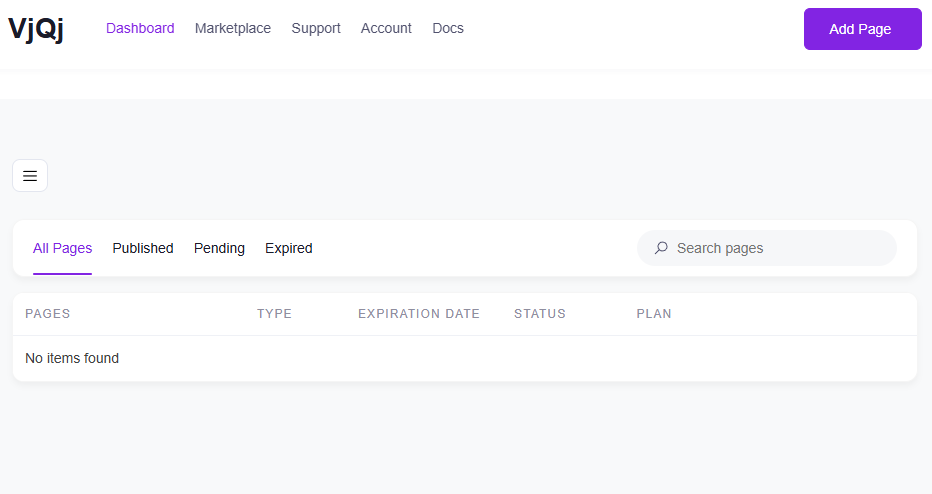
Una vez que haya iniciado sesión, busque "Mis Páginas" en el menú superior. Si aparece, su cuenta está lista.
Paso 2 — Crear una Página de Marca
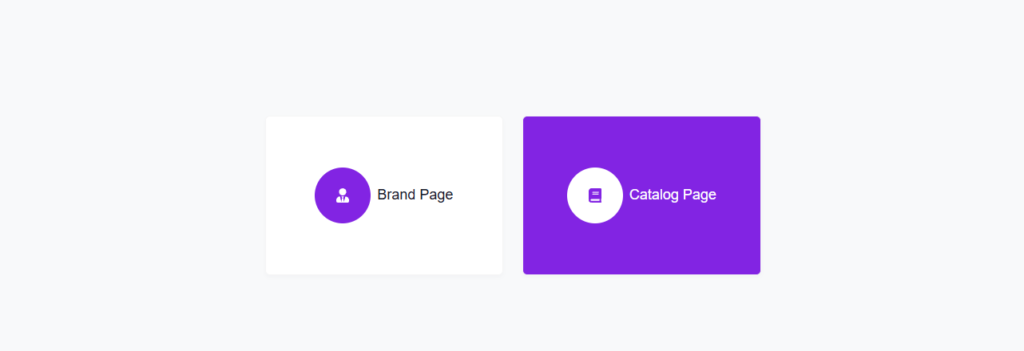
Vaya a "Mis Páginas", haga clic en "Agregar Nueva Página" y seleccione "Página de Marca".

Complete los siguientes campos:
Nombre de la Empresa — su nombre oficial, tal como desea que lo vean los compradores chinos. Industria — seleccione la opción más cercana en el menú desplegable. Correo Electrónico Comercial — la dirección a la que se enviarán las consultas de los compradores.
Todo lo demás es opcional por ahora. Desplácese hacia abajo, marque la casilla de términos y haga clic en "Enviar".
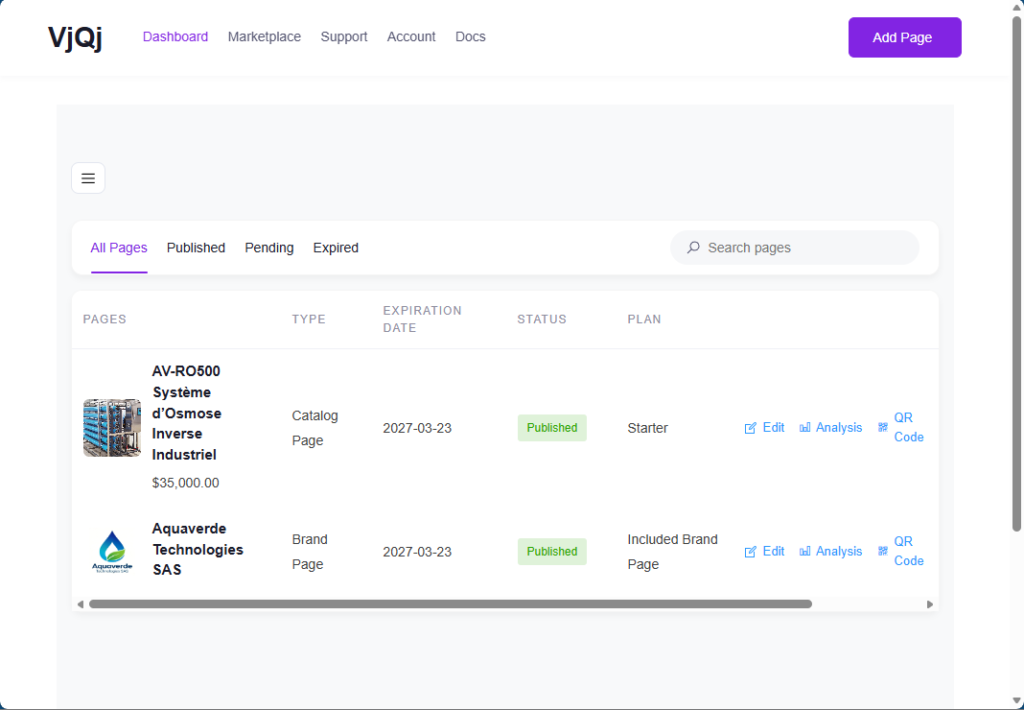
Vuelva a "Mis Páginas". Si su nombre de empresa aparece en la lista, la Página de Marca se ha creado.
Paso 3 — Crear una Página de Catálogo
Haga clic nuevamente en "Agregar Nueva Página" y seleccione "Página de Catálogo".
Su Página de Marca estará preseleccionada en el campo "Perfil de Marca". No puede crear una Página de Catálogo sin una Página de Marca publicada.
Complete:
Nombre del Producto/Servicio — lo que está vendiendo. Categoría del Producto — seleccione del menú desplegable.
Haga clic en "Enviar". Verifique "Mis Páginas" — si el nombre de su producto aparece junto a su Página de Marca, está listo.
Paso 4 — Generar un código QR y probarlo
En Mis Páginas, haga clic en el icono de código QR junto a su página.
Configure tres campos: Plataforma — seleccione WeChat. Tipo de Canal — seleccione Campaña. ID del Canal — escriba algo como "test" (1-5 caracteres).
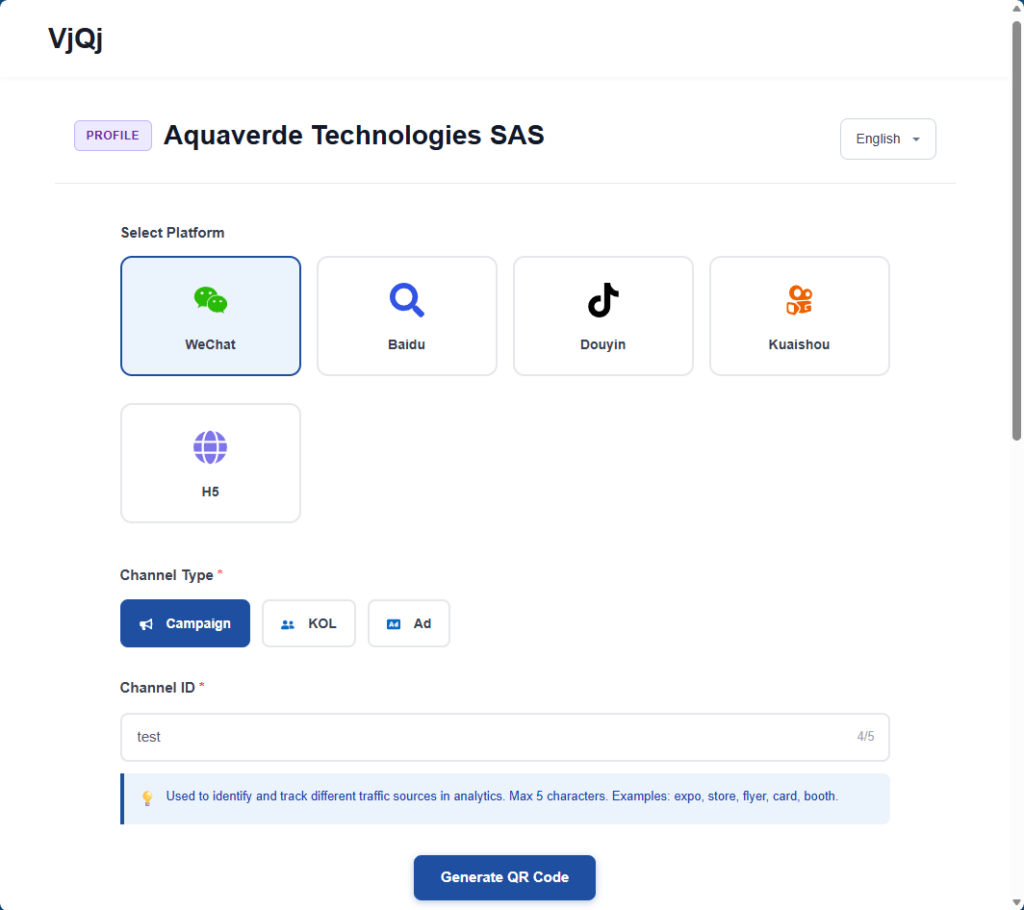
Haga clic en "Generar", descargue la imagen del código QR, abra WeChat en su teléfono y escanéelo. Si la página se carga dentro de WeChat, todo funciona.
Qué hacer a continuación: vuelva y complete su Página de Marca (logotipo, presentación de la empresa, imágenes de galería) y su Página de Catálogo (condiciones comerciales, descripción, fotos). Las secciones siguientes explican cada campo en detalle.