ブランドページ カタログページ 組織ページ AIアシスタント
VjQj
無料監査
価格 ドキュメント
ログイン 始める

VjQj Platform Manual

  • Quick Start
    • Quick Start Guide
  • Getting Started
    • What is VjQj?
    • How to Use This Guide
  • Account Setup
    • Create Your Account
    • ログイン
    • Manage Account Settings
  • Brand Profile
    • Create Your Brand Page
    • Upload Images & Videos
  • Product Catalog
    • Create a Catalog Page
    • Trade Terms & Descriptions
  • QR Codes & Channels
    • QR Code Overview
    • Generate & Download QR Codes
    • Channel Tracking & Analytics
    • QR Code Use Cases
  • Buyer Inquiries
    • Inquiry Types
    • Email Notifications
    • Inquiry Review Process
    • VjQj Trust System
  • Dashboard
    • Accessing the Dashboard
    • Dashboard Types
    • Understanding KPI Metrics
    • Analytics Tabs & Filters
    • Reading Time-Series Charts
    • Page-Level Statistics
    • Data Security & Privacy
  • Support
    • How to Get Support
    • Common Issues
    • Ticket History
  • Marketing Store
    • Marketing Store Overview
    • Purchase & Payment
    • Post-Purchase Management
View Categories
  • ドキュメント
  • VjQj Platform Manual
  • Quick Start

Quick Start Guide

Get your first China page live in about 15 minutes. You don't need images or a complete profile to start.

Step 1 — Sign up

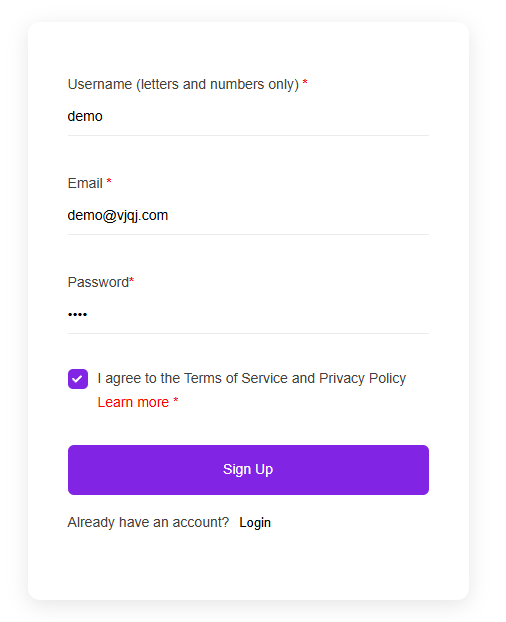
Go to app.vjqj.com and click Sign Up.

Fill in three things: a username (letters and numbers, like "company01"), your business email, and a password. Click Sign Up, then check your inbox for a verification email. Look in spam if nothing arrives within a few minutes. Some accounts activate instantly without verification.

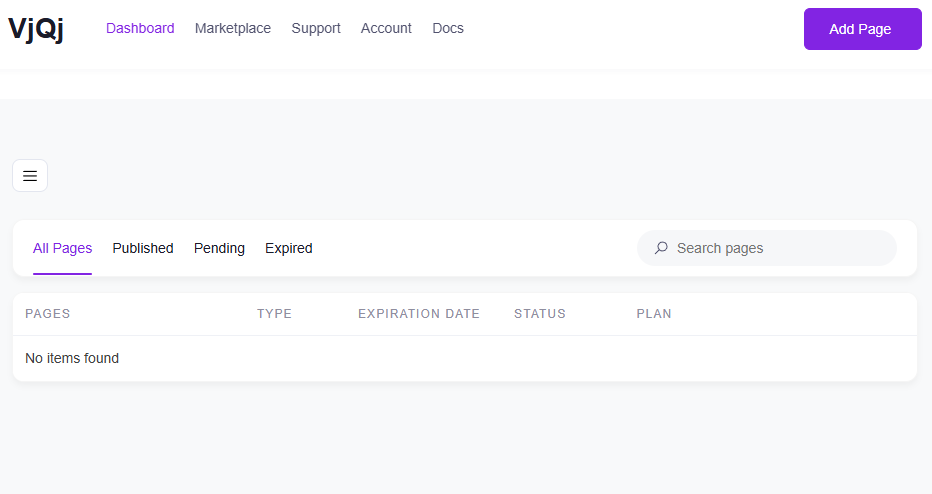
Once logged in, look for My Pages in the top menu. If it's there, your account is ready.

Step 2 — Create a Brand Page

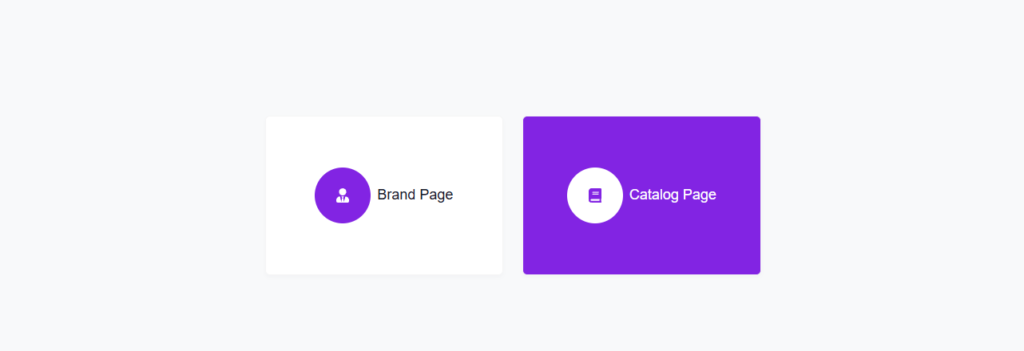
Go to My Pages, click Add New Page, and choose Brand Page.

Fill in these fields:

Company Name — your official name, as you want Chinese buyers to see it. Industry — pick the closest match from the dropdown. Business Email — the address where buyer inquiry emails will be sent.

Everything else is optional for now. Scroll down, check the terms box, and click Submit.

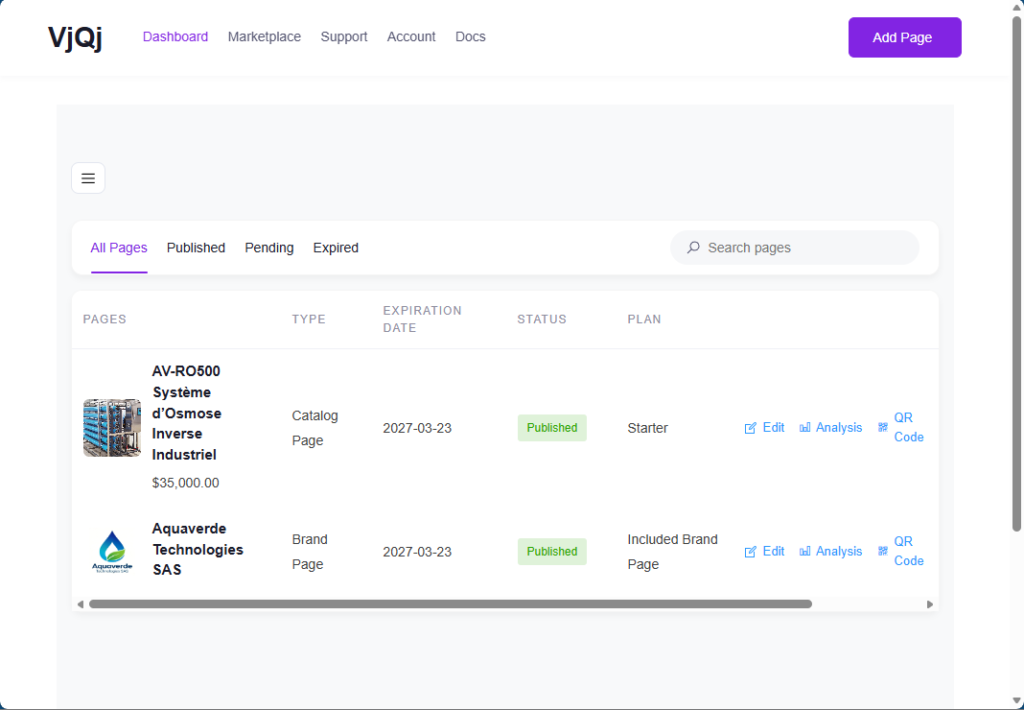
Go back to My Pages. If your company name appears in the list, the Brand Page is created.

Step 3 — Create a Catalog Page

Click Add New Page again, choose Catalog Page.

Your Brand Page will be pre-selected in the Brand Profile field. You can't create a Catalog Page without a published Brand Page.

Fill in:

Product / Service Name — what you're selling. Product Category — pick from the dropdown.

Click Submit. Check My Pages — if your product name shows up alongside your Brand Page, you're set.

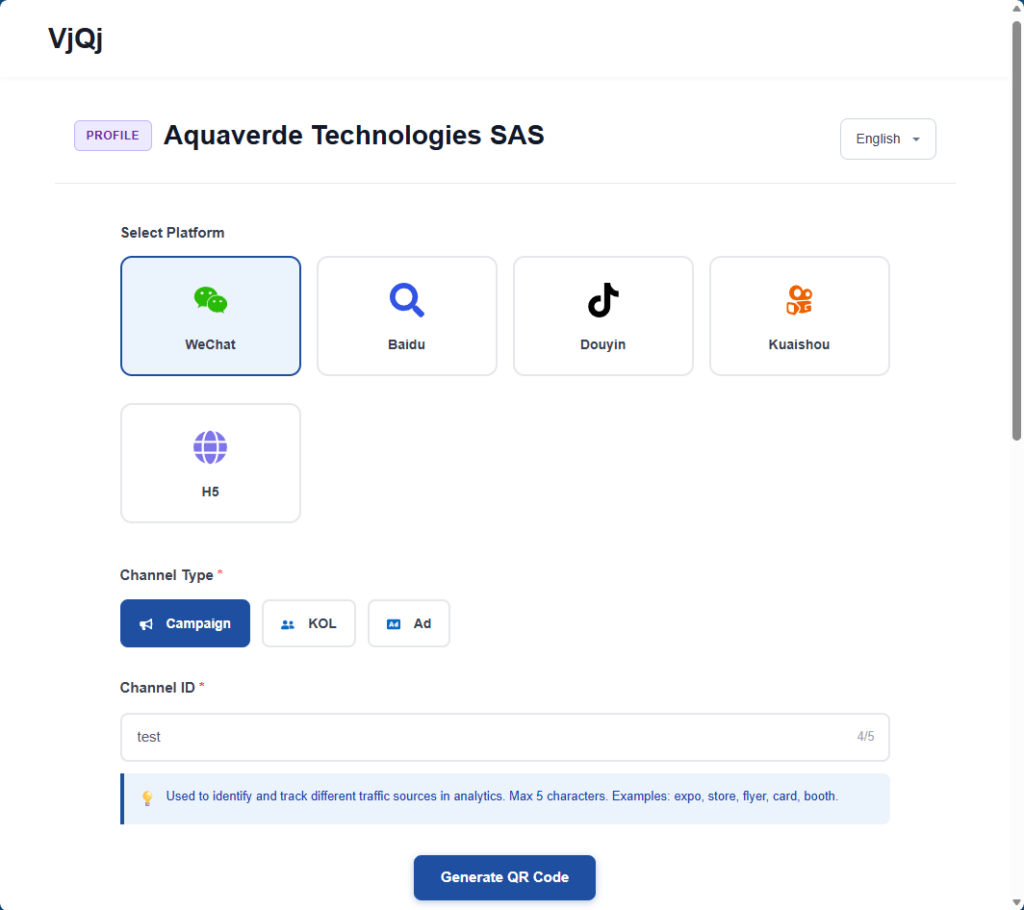
Step 4 — Generate a QR code and test it

In My Pages, click the QR icon next to your page.

Set three fields: Platform — select WeChat. Channel Type — select Campaign. Channel ID — type something like "test" (1-5 characters).

Click Generate, download the QR code image, open WeChat on your phone and scan it. If the page loads inside WeChat, everything is working.

What to do next: go back and complete your Brand Page (logo, company intro, gallery images) and Catalog Page (trade terms, description, photos). The sections below walk through each field.

Was this helpful?

  • Happy
  • Normal
  • Sad

Share:

  • Facebook
  • X
  • LinkedIn
  • Pinterest
VjQj

中国における外資系ブランドのデジタル展開。現地法人なし。代理店なし。推測なし。.

製品

ブランドページ カタログページ 組織ページ AIアシスタント

リソース

無料監査 価格 ドキュメント

始める

マイチャイナページを生成

無料で開始 · クレジットカード不要

ICP 津ICP備2025038813号  | 連絡先: support@vjqj.com  |  利用規約  ·  プライバシーポリシー
© 2026 Tianjin Xuniu AI Studio。無断転載を禁じます。.
LinkedIn
🌐Language:
言語をEnglishに変更 English
言語をKoreanに変更 Korean
Japanese
言語をGermanに変更 German
言語をFrenchに変更 French
言語をSpanishに変更 Spanish
言語をArabicに変更 Arabic
言語をPortugueseに変更 Portuguese
言語をRussianに変更 Russian
言語をIndonesianに変更 Indonesian
言語をVietnameseに変更 Vietnamese
言語をTurkishに変更 Turkish
言語をThaiに変更 Thai
言語をHindiに変更 Hindi
OK
Japanese
English Korean German French Spanish Arabic Portuguese Russian Indonesian Vietnamese Turkish Thai Hindi