หน้าแบรนด์ หน้าแค็ตตาล็อก หน้าองค์กร ผู้ช่วย AI
ววคค
ตรวจฟรี
ราคา เอกสาร
เข้าสู่ระบบ เริ่มต้นใช้งาน

คู่มือแพลตฟอร์ม VjQj

  • เริ่มต้นอย่างรวดเร็ว
    • คู่มือเริ่มต้นฉบับย่อ
  • เริ่มต้นใช้งาน
    • **VjQj คืออะไร?**
    • วิธีใช้คู่มือฉบับนี้
  • การตั้งค่าบัญชี
    • สร้างบัญชีของคุณ
    • เข้าสู่ระบบ
    • จัดการการตั้งค่าบัญชี
  • ข้อมูลแบรนด์
    • สร้างหน้าแบรนด์ของคุณ
    • อัปโหลดรูปภาพและวิดีโอ
  • แคตตาล็อกสินค้า
    • สร้างหน้าแค็ตตาล็อก
    • เงื่อนไขและคำอธิบายการค้า
  • รหัส QR และช่องทาง
    • ภาพรวมของคิวอาร์โค้ด
    • สร้างและดาวน์โหลดรหัส QR
    • การติดตามและวิเคราะห์ช่อง
    • กรณีการใช้งาน QR Code
  • สอบถามจากผู้ซื้อ
    • ประเภทการสอบถาม
    • การแจ้งเตือนทางอีเมล
    • กระบวนการตรวจสอบคำร้อง
    • ระบบความน่าเชื่อถือ VjQj
  • แดชบอร์ด
    • การเข้าถึงแดชบอร์ด
    • ประเภทแดชบอร์ด
    • การทำความเข้าใจเกี่ยวกับตัวชี้วัด KPI
    • แท็บและการกรองข้อมูลวิเคราะห์
    • การอ่านแผนภูมิอนุกรมเวลา
    • สถิติระดับหน้า
    • ความปลอดภัยและความเป็นส่วนตัวของข้อมูล
  • สนับสนุน
    • วิธีขอรับการสนับสนุน
    • ปัญหาทั่วไป
    • ประวัติการจองตั๋ว
  • การตลาดร้านค้า
    • ภาพรวมร้านค้าการตลาด
    • การซื้อและการชำระเงิน
    • การบริหารหลังการซื้อ
ดูหมวดหมู่
  • เอกสาร
  • คู่มือแพลตฟอร์ม VjQj
  • เริ่มต้นอย่างรวดเร็ว

คู่มือเริ่มต้นฉบับย่อ

Get your first China page live in about 15 minutes. You don't need images or a complete profile to start.

Step 1 — Sign up

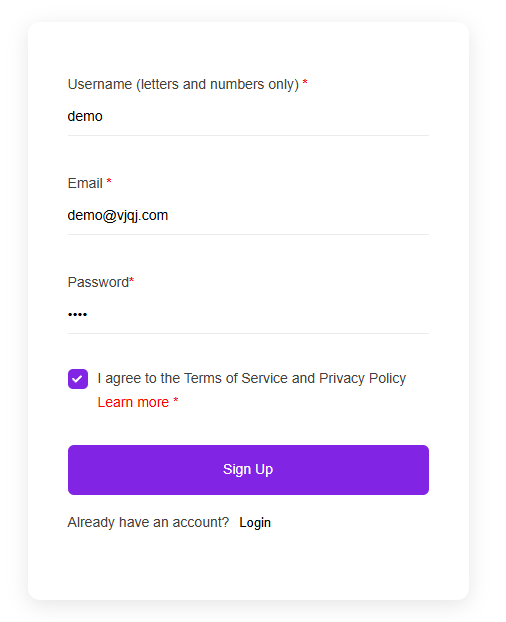
Go to app.vjqj.com and click Sign Up.

Fill in three things: a username (letters and numbers, like "company01"), your business email, and a password. Click Sign Up, then check your inbox for a verification email. Look in spam if nothing arrives within a few minutes. Some accounts activate instantly without verification.

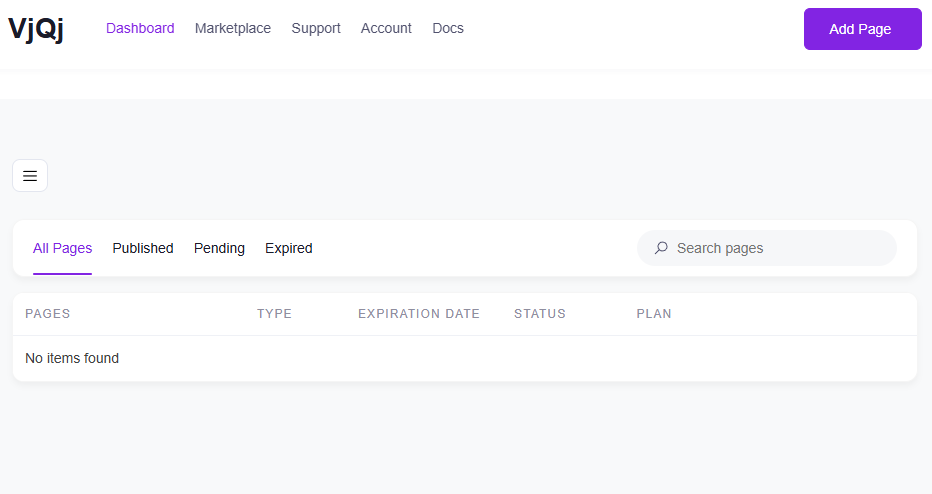
Once logged in, look for My Pages in the top menu. If it's there, your account is ready.

Step 2 — Create a Brand Page

Go to My Pages, click Add New Page, and choose Brand Page.

Fill in these fields:

Company Name — your official name, as you want Chinese buyers to see it. Industry — pick the closest match from the dropdown. Business Email — the address where buyer inquiry emails will be sent.

Everything else is optional for now. Scroll down, check the terms box, and click Submit.

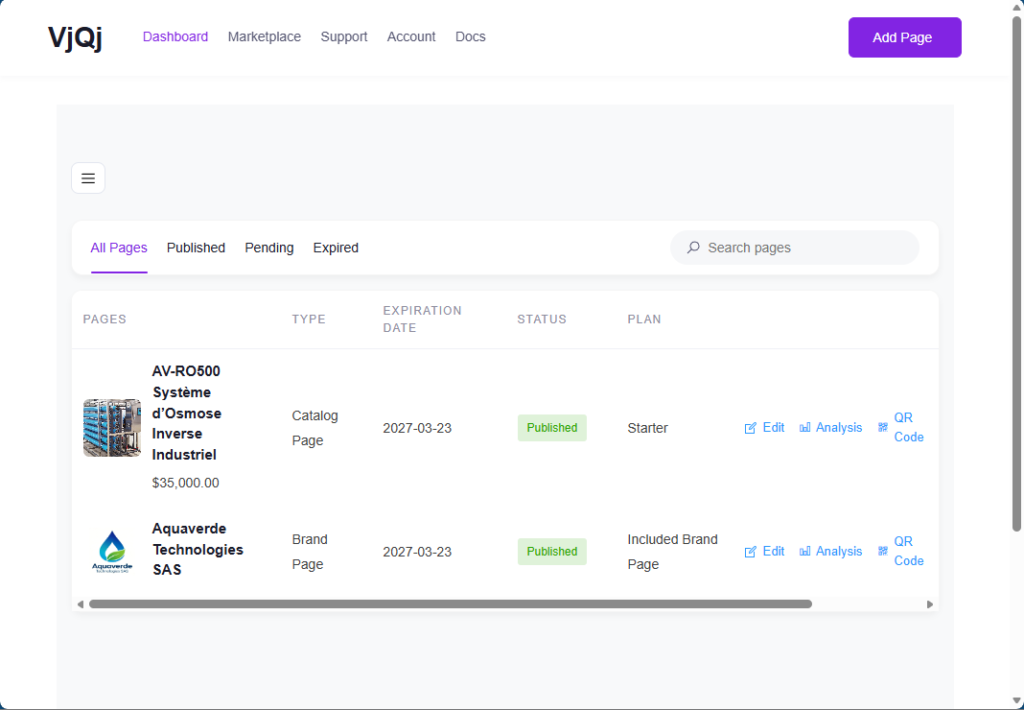
Go back to My Pages. If your company name appears in the list, the Brand Page is created.

Step 3 — Create a Catalog Page

Click Add New Page again, choose Catalog Page.

Your Brand Page will be pre-selected in the Brand Profile field. You can't create a Catalog Page without a published Brand Page.

Fill in:

Product / Service Name — what you're selling. Product Category — pick from the dropdown.

Click Submit. Check My Pages — if your product name shows up alongside your Brand Page, you're set.

Step 4 — Generate a QR code and test it

In My Pages, click the QR icon next to your page.

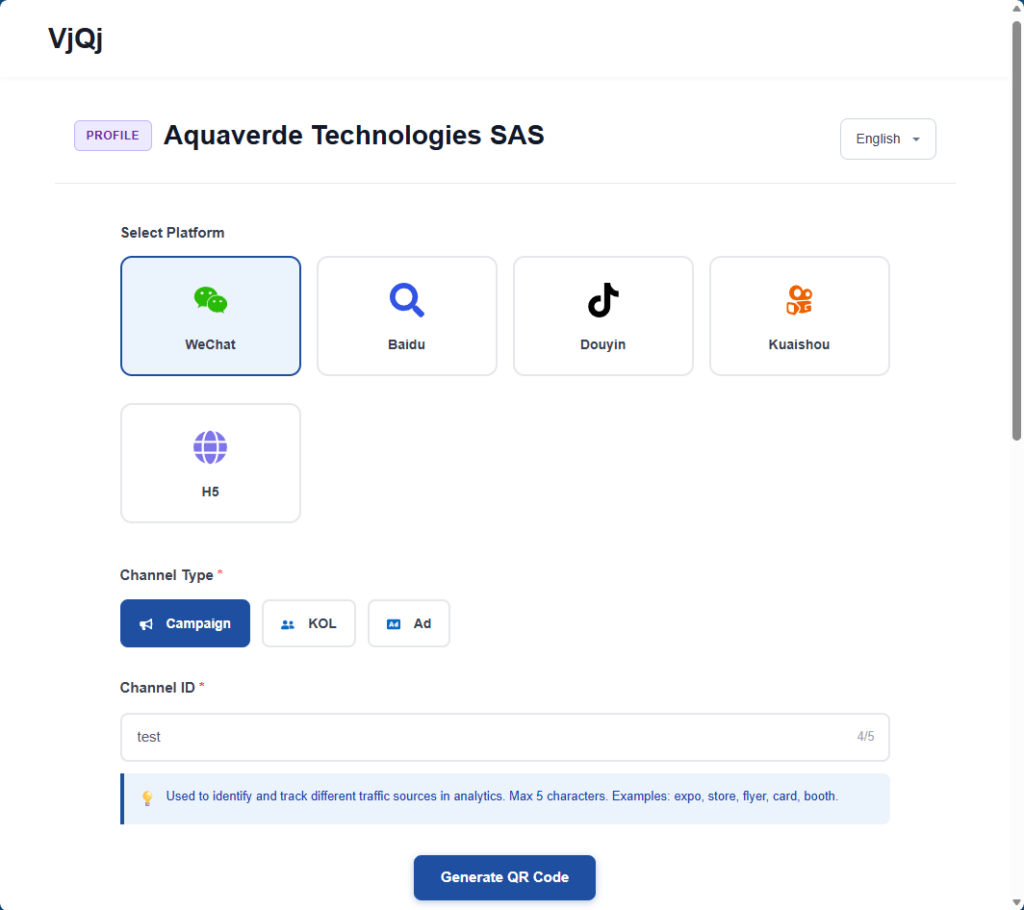
Set three fields: Platform — select WeChat. Channel Type — select Campaign. Channel ID — type something like "test" (1-5 characters).

Click Generate, download the QR code image, open WeChat on your phone and scan it. If the page loads inside WeChat, everything is working.

What to do next: go back and complete your Brand Page (logo, company intro, gallery images) and Catalog Page (trade terms, description, photos). The sections below walk through each field.

สิ่งนี้มีประโยชน์หรือไม่

  • สุขสันต์
  • ปกติ
  • เศร้า

แบ่งปัน:

  • เฟซบุ๊ก
  • X
  • ลิงก์อิน
  • Pinterest
ววคค

การปรากฏตัวทางดิจิทัลของจีนสำหรับแบรนด์ต่างประเทศ ไม่มีนิติบุคคลในท้องถิ่น ไม่มีตัวแทน ไม่มีการคาดเดา.

ผลิตภัณฑ์

หน้าแบรนด์ หน้าแค็ตตาล็อก หน้าองค์กร ผู้ช่วย AI

ทรัพยากร

ตรวจฟรี ราคา เอกสาร

เริ่มต้น

สร้างหน้าประเทศจีนของฉัน →

เริ่มต้นฟรี · ไม่ต้องใช้บัตรเครดิต

ไอซีพี เทียนจิน ICP เลขที่ 2025038813-1  ติดต่อ: support@vjqj.com  |  ข้อกำหนดในการให้บริการ  ·  นโยบายความเป็นส่วนตัว
© 2569 เทียนจิน ซูหนิว เอไอ สตูดิโอ สงวนลิขสิทธิ์ทุกประการ.
ลิงก์อิน
🌐Language:
เปลี่ยนภาษาเป็น English English
เปลี่ยนภาษาเป็น Korean Korean
เปลี่ยนภาษาเป็น Japanese Japanese
เปลี่ยนภาษาเป็น German German
เปลี่ยนภาษาเป็น French French
เปลี่ยนภาษาเป็น Spanish Spanish
เปลี่ยนภาษาเป็น Arabic Arabic
เปลี่ยนภาษาเป็น Portuguese Portuguese
เปลี่ยนภาษาเป็น Russian Russian
เปลี่ยนภาษาเป็น Indonesian Indonesian
เปลี่ยนภาษาเป็น Vietnamese Vietnamese
เปลี่ยนภาษาเป็น Turkish Turkish
Thai
เปลี่ยนภาษาเป็น Hindi Hindi
OK
Thai
English Korean Japanese German French Spanish Arabic Portuguese Russian Indonesian Vietnamese Turkish Hindi